1. Install Eclipse IDE
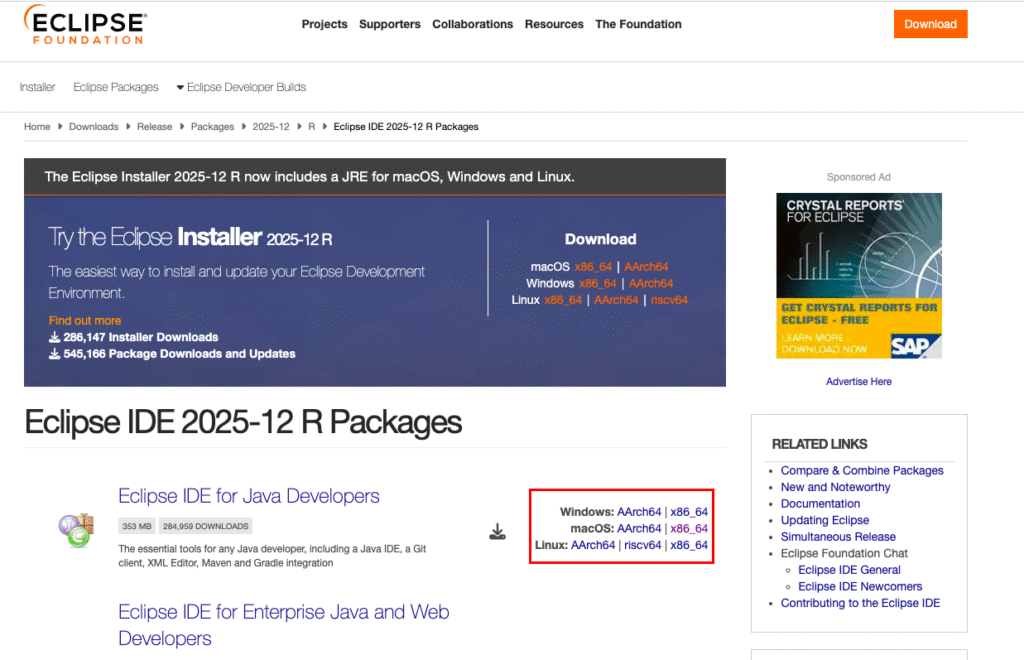
- Click on the button and download the correct setup according to your system. Once you download the setup install it properly.
2. Setup eclipse workspace
- Create a directory separately and set it as eclipse workspace
- Simply go to File -> Switch Workspace -> other -> Browse {Desired Directory, let’s say “Eclipse_Workspace”}
- Now all the project you will be making, will be stored in this workspace or directory
- You can change this directory any time {using Switch Workspace}
Watch this video for a hands-on explanation and deeper insights:
3. Create a java project in Eclipse and execute it
- First go to File-> New-> Java Project
- Choose the name of the project let’s say “FirstJavaProject”
- Now let’s create a package in source folder (src)
- Right click on src-> New -> Package
- Choose the name of the package let’s say “Module_1” {not Module-1 nor Module 1}.
- Now let’s create a Java program
- Right Click on Module_1 -> New -> Class
- Choose the name of the file let’s say “SampleProgram” {don’t add .java extension there}
- Tick main method there and click on finish
public class SampleProgram{

     public static void main(String args[]){
         System.out.println("Hello World");
     }
}- Right click anywhere on the program and choose Run As “Java Application”
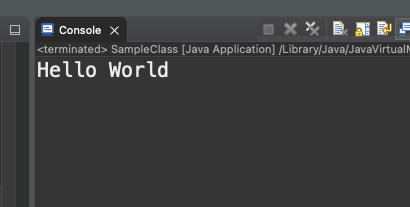
- You must be able to see output in the console like this
4. Install JDK, but why?
- To run or execute a java program through the system’s terminal, the JDK must be installed first.
- However, if you want to run Java code in Eclipse, there’s no need to install the JDK separately because Eclipse includes its own compiler.
- Download JDK from here and install the setup properly.
5. Run a java project through your system’s terminal
- First go to the eclipse workspace folder you have created earlier {Eclipse_Workspace}
- Now locate the java program inside src folder
- copy the path of this java file by checking the properties of the file
- Now open your system terminal and paste the copied path with cd command
- Make sure not to paste the given path
>cd "/Users/akashchauhan/Eclipse_Workspace/FirstJavaProject/src/Module_1"- Now compile and run the java program {SampleProgram.java}
> javac SampleProgram.java
> java SampleProgram
Quiz: Think You’ve Mastered the Topic?
Test your understanding and strengthen your concepts.
Unlimited Attempts Allowed
If you don’t score well on your first try, review the lesson and attempt again.
Thanks and Regards,